
To use your camera with apps on Windows 10, you'll need to turn on some permissions in Camera settings. Then, you'll need to check your app permissions if you want to use your camera with apps. Here's how:
Instructions
Please follow the instructions below to enable your camera
-
Select Start > Settings > Privacy > Camera. In Allow access to the camera on this device, select Change and make sure Camera access for this device is turned on.
-
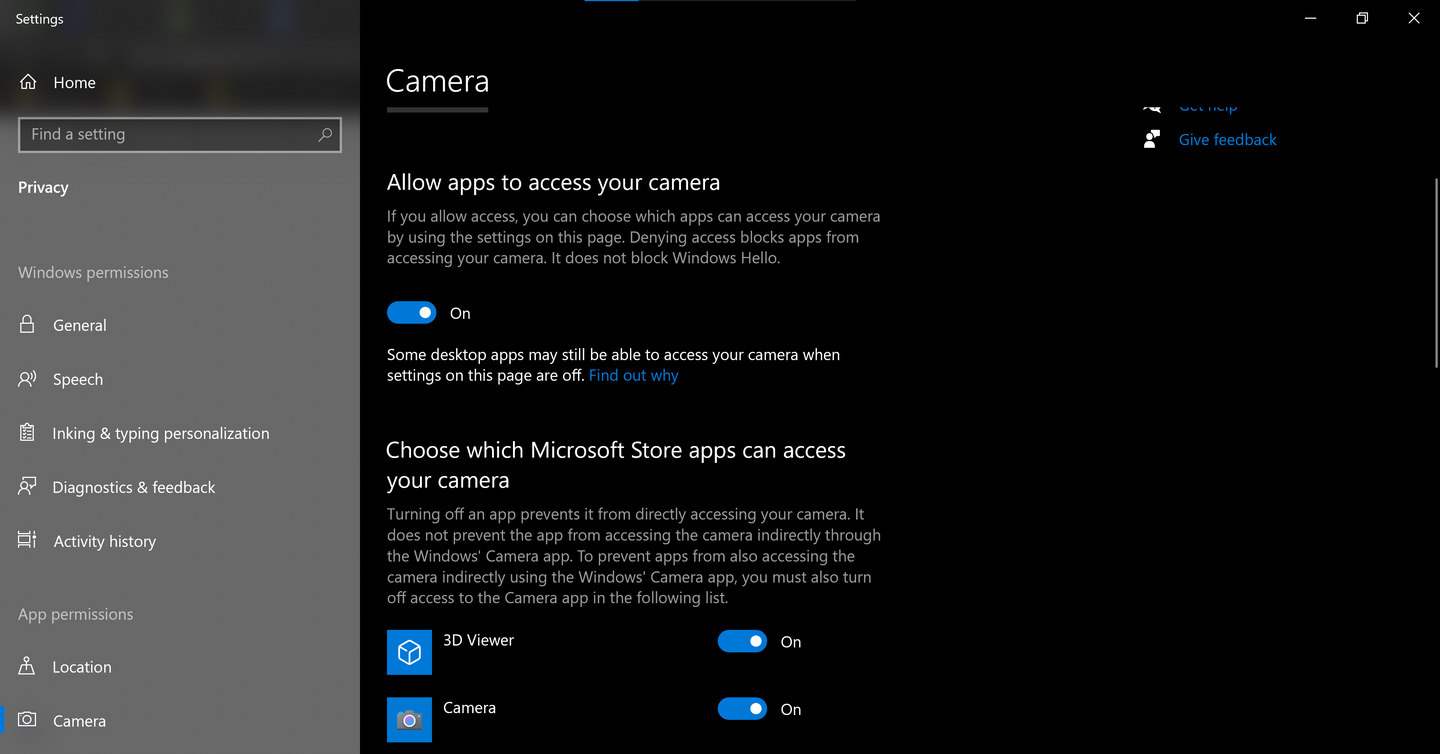
Then, allow apps access to your camera. In the camera settings, go to Allow apps to access your camera and make sure it's turned on.
-
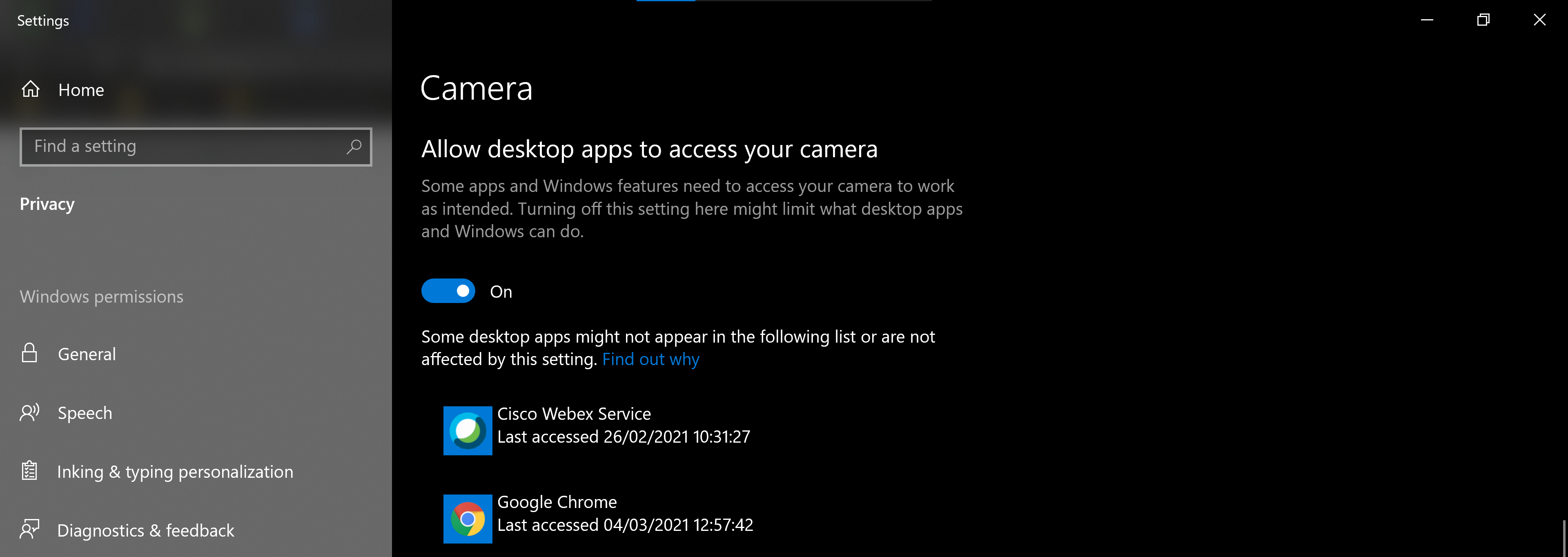
Once you've allowed camera access to your apps, you can change the settings for each app. In the camera settings, go to Choose which Microsoft apps can access your camera, and turn on apps you want to use with it. For desktop apps, make sure that Allow desktop apps to access of your camera is turned on.
Related articles
Comments
0 comments